Best File Formats for Custom T-Shirt Designs
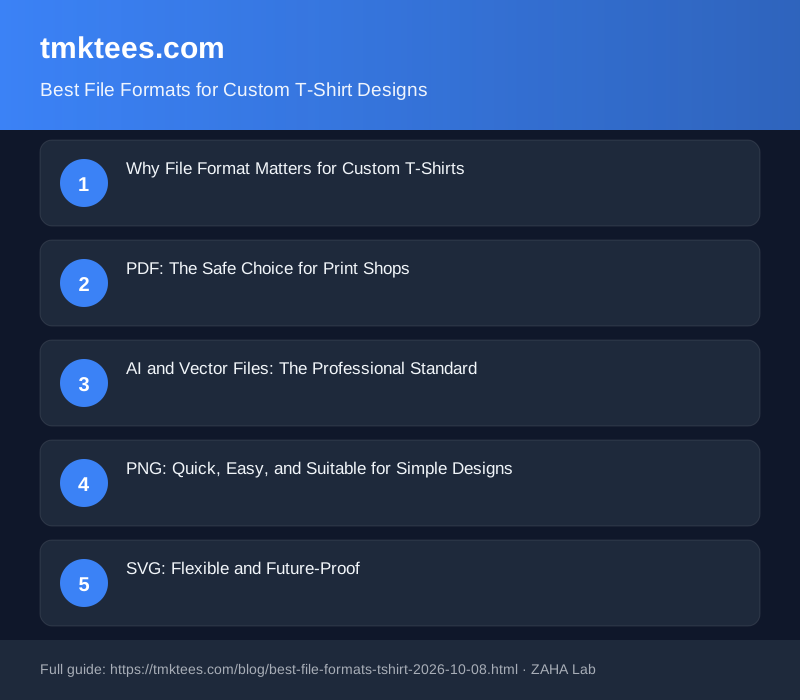
Nine out of ten custom t-shirt orders arrive at the printer with incorrect file formats or settings. Here's what works: use PDF or AI for professional results, PNG for simpler designs, and always embed fonts and set resolution to at least 300 DPI.
Why File Format Matters for Custom T-Shirts
Your design file is the blueprint for your custom t-shirt. Send the wrong format, and print shops either reject your order or produce blurry, pixelated results that look nothing like your vision. The format determines how colours display, whether text stays sharp, and whether special effects like metallics or glow-in-the-dark ink can be applied.
The confusion starts because many design tools export in formats built for screens rather than printing. A JPG file optimised for a website loses information when printed at larger sizes. A PNG with the wrong colour profile can shift greens into blues. Understanding these differences saves time, money, and frustration.
PDF: The Safe Choice for Print Shops
PDF files are the industry standard for a reason. They preserve your design exactly as you created it, maintain colour accuracy, and embed fonts so the printer never substitutes the wrong typeface. Most professional print shops accept PDF as their preferred format.
When saving as PDF, ensure you set the resolution to 300 DPI (dots per inch) or higher. This guarantees your design stays crisp even on large areas of your custom t-shirt. Export your artwork with a 0.25-inch bleed area (extra space around the edges) to prevent accidental cropping.
One common mistake: saving as PDF with transparency. Custom t-shirt printing, especially screen printing, requires solid backgrounds or deliberately transparent areas. Check your file in preview mode before sending it off.
AI and Vector Files: The Professional Standard
Adobe Illustrator files (AI) and other vector formats are what professional designers use for custom t-shirt designs. Vector graphics scale infinitely without losing quality, so your design looks sharp on a small pocket print or a massive chest graphic. They're the gold standard for screen printing and DTG (direct-to-garment) printing.
Vector files are ideal if you plan to scale your design across multiple products or print it at different sizes later. If you're investing in professional design software like Affinity Designer, working in vector format from the start saves weeks of rework.
The downside: vector files require design software to open and edit. If you're outsourcing your design or working with a freelancer, confirm they have Illustrator or a compatible tool before handing over the project.
PNG: Quick, Easy, and Suitable for Simple Designs
PNG files work perfectly well for custom t-shirts if your design is relatively simple and you're not worried about scaling it up significantly. They preserve transparency, which is valuable if you want your design on a dark t-shirt without a background box. The key requirement: save your PNG at 300 DPI minimum, not the typical 72 DPI used for web graphics.
PNG files export from most design software, including free tools like Canva. If you're using Canva to create custom hoodies or t-shirts, download as PNG and let your printer know if the design needs to be scaled up. Some print-on-demand services handle this scaling automatically.
The limitation: if you enlarge a PNG too much, it becomes pixelated. A 3-inch design at 300 DPI is safe. An 8-inch design from a small PNG file will look rough.
SVG: Flexible and Future-Proof
SVG (Scalable Vector Graphics) files are increasingly popular for custom t-shirt designs, especially among smaller brands and print-on-demand shops. They're vector-based, so they scale perfectly, and they're open-source, meaning any modern tool can open them.
If your t-shirt print shop supports SVG, use it. The format plays nicely with modern embroidery software, laser cutting services, and multiple printing methods. Many newer design tools now export SVG natively, making it easier than ever to work in this format.
Common File Format Mistakes to Avoid
- Saving at 72 DPI instead of 300 DPI (results in blurry printing)
- Using JPG for designs with text (JPG compression ruins small lettering)
- Forgetting to embed fonts in PDFs (print shop substitutes different typefaces)
- Leaving transparent areas where you intended white (DTG printers may interpret this as "no ink here")
- Using RGB colour mode instead of CMYK (screen printing requires different colour conversion)
- Sending Photoshop files (PSD) without flattening layers (printers can't open these reliably)
Quick File Format Decision Tree
Unsure which format to use? Check what your print shop prefers first. If they don't specify, follow this simple rule:
- Professional designer with Illustrator? Use AI or EPS.
- Budget-conscious or simple design? Use PDF at 300 DPI.
- Using Canva or similar software? Export as PNG at highest quality.
- Want flexibility for future reprints or scaling? Choose SVG.
- Unsure about resolution or settings? Ask your print shop before uploading.
FAQ
What happens if I send a JPG file instead of PDF?
JPG files use compression that degrades image quality, especially noticeable on text and fine details. Most professional print shops will either reject JPG files or charge a fee to convert them. For custom t-shirt orders, always use PDF, AI, or PNG.
Can I use a file directly from Canva for my custom t-shirt order?
Yes, but download it as PNG at the highest quality setting. Canva's default PNG export is 72 DPI (screen resolution), so tell your printer if they need to scale up. Some print-on-demand services handle Canva files directly, but checking with your printer first prevents delays.
What's the difference between RGB and CMYK for custom t-shirt designs?
RGB is for screens (computer monitors, phones), while CMYK is for printing. Custom t-shirt printers use CMYK. If you submit an RGB file, the printer must convert it, which can shift your colours slightly. Always confirm your file is in CMYK before uploading, or ask your printer to handle the conversion.
Do I need to include bleed or safe margins in my design file?
Yes. Include a 0.25-inch bleed area (the portion that gets trimmed) and keep critical elements like text or logos within 0.125 inches from the edge. This prevents accidental cropping. Check your print shop's specifications, as some services have different requirements.
Is SVG suitable for screen printing or only DTG?
SVG works well with most printing methods, including screen printing, DTG, and embroidery. However, older print shops may not accept SVG. Always confirm your printer supports it before converting your design. When in doubt, provide both SVG and PDF versions.
Related Products
Premium Blank T-Shirts
High-quality blank custom t-shirts ready for printing. Multiple colours and sizes available for testing your designs before full production runs.
View on Amazon UKHeat Transfer Paper
Professional-grade heat transfer sheets for home printing of custom designs. Works with most inkjet printers for DIY t-shirt and apparel projects.
View on Amazon UKCustom Hoodie Blanks
Premium blank hoodies for custom printing. Perfect for streetwear collections, personalised gifts, or testing designs on larger garments.
View on Amazon UK